Showing posts with label web. Show all posts

Wednesday, April 15, 2009

HTTP 404 errors when previewing new XPages

I'm going through a tutorial on XPages. After creating a new XPage and when I save the document, a message prompt me that Automatic Build is not selected. I ignore the message and proceed. I tried to preview the Xpage but got a 404 error.

It seems that after saving the XPage, it have to be build. It can be done through enabling automatically build or right click on the XPage and click build.

Previous experience developing Lotus application, I do not need to compile or build any forms, scripts, etc. The Lotus designer will handle all of those. Now it seems that the designer is moving something similar to Java Eclipse base IDE. I feel that this is a step backwards. The designer should be keep simple and straightforward as the previous version.

Friday, March 20, 2009

Internet Explorer 8 - IE8

Internet Explorer 8 is officially released. Would be downloading it and test all the web application on it. Wonder how many application will be broken?

Thursday, March 05, 2009

Learning XPages By Declan Lynch

Head over to Learning XPages By Declan Lynch site. Looks like a great place to pick up XPages in Lotus Domino 8.5.

Monday, March 02, 2009

The 5 Most Under-Used HTML Tags

Sitepoint highlighted 5 most underused HTML Tags, <label>, <fieldset> <legend>, <optgroup>, <dl> <dt> <dd> and <q> <cite>.
Personally, I do use <fieldset> <legend> and <optgroup>. Click here to view the full article.

Wednesday, January 14, 2009

Hiding navigation on web page when printing

When printing a web page, we want to maximise the content area for printing. To do this, I want to hide the navigation area when user is printing the page.

For example in a page, there are 3 area, header, left navigation and content.

<div id="header">header</div>
<div id="nav">Left navigation</div>
<div id="content">Content area</div>


When user click on print, only the content area is printed. This can be control using a seperate CSS to hide certain area when printing.
The sample is below.

Add the css link in the page. The media type = "print".

<link rel="stylesheet" type="text/css" media="print" href="print.css" />


In print.css

#header{display:none}
#nav{display:none}


This would hide the header and the nav div tag when printing.

Tuesday, August 07, 2007

YSlow - 13 Simple Rules for Speeding Up Your Web Site

Yahoo! Developer Network provides a list of 13 rules for speeding up website. To check if a website follow the simple rules, Yahoo! have provide a nice tool, YSlow. It is a plugin on Firebug. YSlow analyzes web pages and tells you why they're slow based on the 13 rules.

Ironically, I've check the Yahoo Performance article page. It have a rating of "F"


www.yahoo.com get a better rating of "B". Some of the rule they get B, C and worst F. I would expect them to have mostly A.


I'm working on a web portal now. Before tuning, I have some issue for expire header and gzip component. I manage to tweak things a bit and get the rating improved. The only luxury that I don't have is Content Delivery Network.


Guess who get the "A" rating below. It's one of Yahoo's biggest competitor.

Tuesday, April 03, 2007

Document Navigation From View - HTTP_Referer

On Lotus client, when opening a document from a view, normally will be open on a new tab. Thus closing it may bring you back to the view.

On web, people try to avoid opening a new window. When opening a document from a view, users will expect to go back to the view that they come from. Users can access the same document from different views. Thus application have to be built to handle this.

One way to do this is passing the view name through the anchor link when opening the doc from the view. A simple way is to look through the view table DOM anchor and append the required query strings. I usually put the a div tag ("viewtable") around the embedded view in the $$ViewTemplate. This code below will look through the anchor link and append in the view name.

var anchor =
document.getElementById("viewtable").getElementsByTagName("a");
for(var i=0; i<=anchor.length; i++){
if(anchor[i] !== undefined){
anchor[i].href = anchor[i].href + "&view=" +
document.getElementById("viewname").value;}
}

This is a simple solution but when you have a large view, you have to take into consideration of the script performance. There should be a simpler way to do this. I just thought of using CGI values.

So I tried using HTTP_Referer. It returns the url of where you come from, thus it can be used to retrieve the view name. I store the view name in a hidden field for easy reference. The formula below can be used in the field to retrieve the view name from the HTTP_Referer. If it cannot find the view name in the HTTP_Referer, it will put in a default view name.

a:=@Left(@Right(HTTP_Referer; ".nsf/"); "?OpenView");
@If(a=""; "vMyAction"; a)

The "Close" button in the document can use the field to navigate back to the view.
When going from read to edit mode, the referer will be the read mode thus losing the view name info. A simple way around this is to pass the view name along in the URL when opening the document in edit mode or going back to read mode. It can easily be retrieve using @UrlQueryString.

There are many ways to do the document navigation from the view. You can use the methods above, cookies, etc. If you know a better or simpler way to do it, feel free to drop in your comments.

Add to del.icio.us

Tuesday, March 06, 2007

Quick Tip - Domino File Upload Control element

For file uploading on the web, File Upload Control element can be used in Domino Design. It will create the file upload file (eg tag below). The name of the File Upload field will start with %%File.

<input id="UserFile" size=50 type="file"
name="%%File.482571b10020b158.e1c9d0d2ceb6a5c5482571b50022e0ab.$Body.0.1F64">

@AttachmentNames will return all the attachment(s) filename of the document. To create anchor link to the file, a <ComputedValue> can be used to built the link.

temp := @AttachmentNames;
ahref := "<a title=\"" + temp +
"\" target=_blank href=" + DatabasePath +
"VUncat/" + @Text( @DocumentUniqueID ) +
"/$FILE/" + temp + ">" + temp + "</a>";
ahref

There is a problem when directly using the attachment name to be set as the anchor link. Files with space in the filename will produce broken link. Some file upload examples that I saw, include a message to inform user not to upload file with space in the filename. This is definitely not user friendly.

To overcome it use @URLEncode. It will handle the space or some other special characters in the filename.

ahref := "<a title=\"" + temp +
"\" target=_blank href=" + DatabasePath +
"VUncat/" + @Text( @DocumentUniqueID ) +
"/$FILE/" + @URLEncode("Domino"; temp) +
">" + temp + "</a>";

To add in additional function to removed the attachment, use an input checkbox with the name "%%Detach"

ahref := "<INPUT TYPE=checkbox NAME=\"%%Detach\" VALUE=\"" +
@URLEncode("Domino"; temp) + "\"> <a title=\"" +
temp + "\" target=_blank href=" + @WebDbName + "VUncat/" +
@Text( @DocumentUniqueID ) + "/$FILE/" + @URLEncode("Domino"; temp) +
">" + temp + "</a><br/>";

Checked on the filename that need to be removed. Then save document. The attachment will be removed.

Domino File Upload Control provides an easy way to upload file into the document. And the examples above is to access the attachments and manipulate it (open, delete).

Add to del.icio.us

Wednesday, February 07, 2007

Sortable Column View using Dojo FilteringTable

In Lotus Notes client, we can set the column in a view to be sortable. I use Dojo FilteringTable to mimic the sortable column. In this example, it only works for flat view or view without categories. I'm using Dojo 0.4.0 here.

First create a $$ViewTemplate. This is needed to attached in the required Dojo libraries and the generation of the FilteringTable. Insert the embedded view and set the Display to "Using HTML". For simplicity, add a div around the embedded view. It is used by the function to pick up the table inside it to be formated. Give it a name, eg. "viewdiv". Make sure only the text is pass through HTML. If the embedded view is also pass through, it won't be displayed.
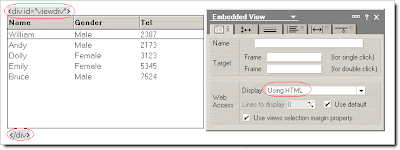


In the HTML Head Content insert the code below. Change the "dojopath" to where you store your dojo. Import this js file into the database.

"<script type=\"text/javascript\">"+@NewLine+
" var djConfig = {isDebug: true};"+@NewLine+
"</script>"+@NewLine+
"<script type=\"text/javascript\" src=\"/" + dojopath + "/dojo-0.4.0/dojo.js\"> </script>"+@NewLine+
"<script type=\"text/javascript\" src=\"/" + @WebDbName + "/LNFilteringTable.js\"></script>"


Then in the JS Header insert the require dojo Library. When the document load then call the function createFilterTable(ViewDivName).

dojo.require("dojo.widget.FilteringTable");
dojo.hostenv.writeIncludes();

dojo.addOnLoad(init);

function init(){
createFilterTable("viewdiv");
}

Domino by default will generate a HTML table for the view. What the function does is to format the table for the Filtering Table. The first row id moved out of the body to a newly created table head (thead). This is used for sorting the columns. Then each of the row need to have a value. The anchor link href is extracted as the value of the row. The anchor links also need to be removed because they will affect the sorting. To replace the links, double click event is added on each row to open the document. Below is the sample end result.
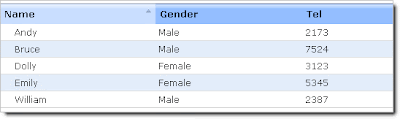


The generated table is without any formatting. To make it look as the image above, use CSS for the layout. Import the dojo FilteringTable sample images for the column header into the Image Resources (ft-head.gif, ft-headup.gif & ft-headdown.gif). I used a page to create the CSS. Use @WebDbName for the <ComputedValue>.

#viewdiv table {width:100%;border:1px solid #ccc; border-collapse:collapse;}
#viewdiv table td, table th {padding:4px;font-weight:normal;}
#viewdiv table thead td, table thead th {background-image:url(/<ComputedValue>/dojowidget/ft-head.gif);
background-repeat:no-repeat;background-position:top right;padding:6px;font-weight:bold;}
#viewdiv table thead td.selectedUp, table thead th.selectedUp {background-image:url(/
<ComputedValue>/dojowidget/ft-headup.gif);}
#viewdiv table thead td.selectedDown, table thead th.selectedDown {
background-image:url(/
<ComputedValue>/dojowidget/ft-headdown.gif);}
#viewdiv table tbody tr td{border-bottom:1px solid #ddd;}
#viewdiv table tbody tr.alt td{background: #e3edfa;}
#viewdiv table tbody tr.selected td {background: yellow;}
#viewdiv table tbody tr:hover td {background: #a6c2e7;}
#viewdiv table tbody tr.selected:hover td {background:#ff9;}
For future enhancement, I will add in the filtering functions. At the mean time, download this js file and tried it out.

del.icio.us

Thursday, November 09, 2006

Efficient JavaScript

For anyone who does web development, this article "Efficient JavaScript" is a good read from Dev.Opera.

Tuesday, October 31, 2006

Client User Interface on Web: Preview pane on web

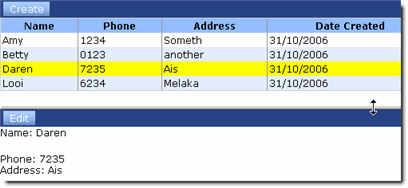
I finally get some time to sit down and do an example of a very simple application with dojo. I've created a split vertical pane. The top pane will display the view and the bottom pane (preview) will display the form (edit and saving).

You can download the example here. Remember to sign the database first.

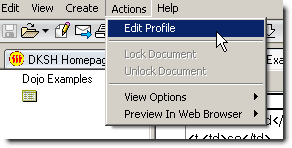
First setup where you store your dojo library. Open the profile document from the menu "Action --> Edit Profile".


Enter the path of the dojo.js. for eg "/WebTool/Dojo.nsf/dojo-0.3.1/dojo.js". Here I store dojo in a nsf template. You can also store it directly at the Domino server HTML directory.

First the view. I used SortableTable. The view (hvPerson) generates the html table body. $$ViewTemplate is use to create the rest of the table for the SortableTable. In each row, the document unique id is inserted in the <td> tag as a value. This will be use to retrieve the selected document from the table.


The "Create" button will retrieve the form (dfPerson). Domino form will create the full HTML source by default. So when it is retrieved, we only need the Form portion to be display in the preview area.


When saving the form, we can directly use the form action for submission. Just pass in the form to dojo.io.bind and it will handle the submission. This is the same when saving a existing form. The best part is, even the WebQuerySave works. So this is really a convenient function to use.

I have just touch the surface of how "Client" like application can be built on the browser. To those dojo guru out there appreciate if you could feedback on the code used here. I put together the this sample application referring to the dojo demo application and responses from this forum.
Download the sample and try it out.

Wednesday, October 18, 2006

Client User Interface on Web

There are so many different javascript framework available for download. To name a few prototype, dojo, yui.... etc. The list goes on. I've been using prototype for quite a while and like it. The $ function, some of the DOM, event and array functions are quite easy to use.

Now I'm looking for something that can help me build a client like application on browser. Dojo provide a lot of building client like functions, eg. browser windows, menu bar, just to name a few. YUI is gaining a lot of reputation for their set of library. So which is better? Or should I stick to prototype & scriptaculous?

I ended up giving dojo a try. Dojo definitely have quite a lot of build in functions. But it's quite heavy too. The full dojo.js compress is 127 KB. That doesn't take into consideration of the many different library that need to be imported for different functions.

First impression, documentation is needs to be improved. I can't find offline documentation that can be downloaded. The API doc and the manual is all online. But I still gave it a further look.

Going through some of the examples, I found something that I can start with. I like the ContainerPane and the SplitPane. I can build layout without worrying about the CSS of the different panes in a page. The spilt pane provide resizable panel. That's nice.

Then I jump to AJAX calls. Dojo provide an IO library for that. Dojo even provide crossed domain AJAX calls through IFrame I/O. What I like is the form submission. That's what's I was looking for.Lotus Notes form itself have the required submission action url. Using dojo.io, AJAX posting of the form can directly use the existing url. This is convenient.

Using both function above, a view with preview pane can be created similar like in LN Client. user can browse through the view documents without refreshing the page. The document can be set editable and save within the same page. I'll be drafting the steps to create the example describe above. Keep a look out.

Friday, October 13, 2006

Managing Domino File Resources Using WebDAV

For those of you using external javascript library in Lotus Notes, I guest a lot of you went through the pain of importing the javascripts into the File Resources. This is true for big library like YUI, Dojo and even DHTML editors like TinyMCE. For some, most probably those will be distributed directly into the server HTML folder. But for a worldwide distribution of application, it's easier to distribute it together with the application.

Thank to Jake brilliance again, I learned a new way to import these file almost quite easily into the database using WebDav. Just a few setup on the server and you are ready to go. Check out the article "Managing JavaScript Libraries in Domino".

Monday, October 02, 2006

Content Feed RSS Part 2 - Datetime

I've learn something new from a comment from my previous post. All date-times in RSS conform to the Date and Time Specification of RFC 822, with the exception that the year may be expressed with two characters or four characters (four preferred). Must have miss that when browsing through the RSS Specification. I've updated the RSS feed of CouchDb Forum. The change is quite easy in Lotus Notes view. I've just change the column to the required format as shown below. Use "Date/Time" style for the column and display "Custom".

Tuesday, September 05, 2006

Content Feed RSS Part 1

There are two major content feed (that I know of) Really Simple Syndication or Rich Site Summary (RSS) and Atom. I am working on creating a RSS feed for the CouchDb Project website. On firefox, when a website have a feed, it can be indicated right on top at the URL bar.

You just need to add the following code
<link rel="alternate" type="application/rss+xml" title="Lotus Notes on Web 2.0 (RSS 2.0)" href="http://notesweb2.blogspot.com/rss.xml" />

The RSS feed for the CouchDb Forum is created using view and $$ViewTemplate. I will be posting the solution in my next writeup. Check out the feed here.

Tuesday, August 22, 2006

5 HTML elements you probably never use (but perhaps should)

There is an article at SEOmoz.org about 5 HTML elements that's seldom use
  1. <address>
  2. <q>
  3. <optgroup> (personally fell this one is really useful)
  4. <acronym> or <abbr>
  5. <fieldset> and <legend>
Check out the article for details.

Wednesday, August 02, 2006

10-Week Free AJAX Programming

Sang Shin is giving a 10 Week Free Ajax Programming Course . For those who's new to Ajax, this should get you up to speed with Ajax. Check out his other free Java/J2ee courses.

Wednesday, June 14, 2006

JSON for Dummies part 2

Below are clipping from My Portal Project, JSON for Dummies part 2:

Change the JSON response so that we have a method called “actionToTake”, and call it directly:

{"ajaxReturn":
{"actionToTake" :
function(){
alert('The description and category fields are required.');
}
}
}


In the above sample we created the “actionToTake” object as a function, with no parameters. Now we can use the following code to process our action:

function processJsonResponse(originalRequest){
var domText = originalRequest.responseText;
var jsonResult = eval("(" + domText + ")");
jsonResult.ajaxReturn.actionToTake();
}


This is another example of JSON strength.

Tuesday, June 13, 2006

JSON for Dummies

So what is JSON all about? How do you actually pronounce it? Is it 'J' 'S' 'O' 'N'? I personally call it J'a'SON.
Jeff Crossett at My Portal Project wrote an article on JSON for Dummies (like me) Part 1. Check it out here.

Friday, June 02, 2006

Serving JavaScript Fast

Here's an interesting article by Cal Henderson on Serving JavaScript Fast

Quote from the article

The next generation of web apps make heavy use of JavaScript and CSS. We’ll show you how to make those apps responsive and quick.